How to use MargaLink.
Every tool, every option, on the real screens. Start anywhere; each section stands on its own. Building or reviewing MargaLink instead? Read how it's built.
Getting around

- The MargaLink mark: back to the landing page.
- Home: your dashboard: start writing, open this guide, and see what's new. The landing page's Dashboard button comes here too.
- The tools: Journals, Match, Review, Figures, Write. Each has its own colour bead, used on its page too.
- Where you are: the current tool is pressed into the tray.
- Write: the workspace, where the other tools also open as windows.
- Guide: this page.
- Your M coins, once you're signed in: the balance, and a click to your account. Signed out, it says Sign in; only the AI review and Ask Claude need an account. Privacy, the terms and the other site links are at the bottom of your dashboard.
What stays on your device
Reading your paper, matching it to journals, the format and journal-rules checks, drawing figures from your spreadsheet, and writing and compiling LaTeX all run in your browser. What it downloads is public (the journal index, the matching model, the TeX engine, the figure engine), and none of those requests carries anything of yours.
The two things that can leave it, only when you confirm
The AI review sends your paper's text to Claude, in short requests, after a notice that says exactly that. It needs an account and costs M coins; the price is on the button, and any part of a review that doesn't come back is refunded.
Ask Claude in the figure studio sends a description of your data: column names and types, the row count, your request; never a value from a cell. Group labels go only if you tick a box. 1 M coin a request, refunded if it fails.
Anywhere in MargaLink, this colour marks something that would leave your device.
Browse journals
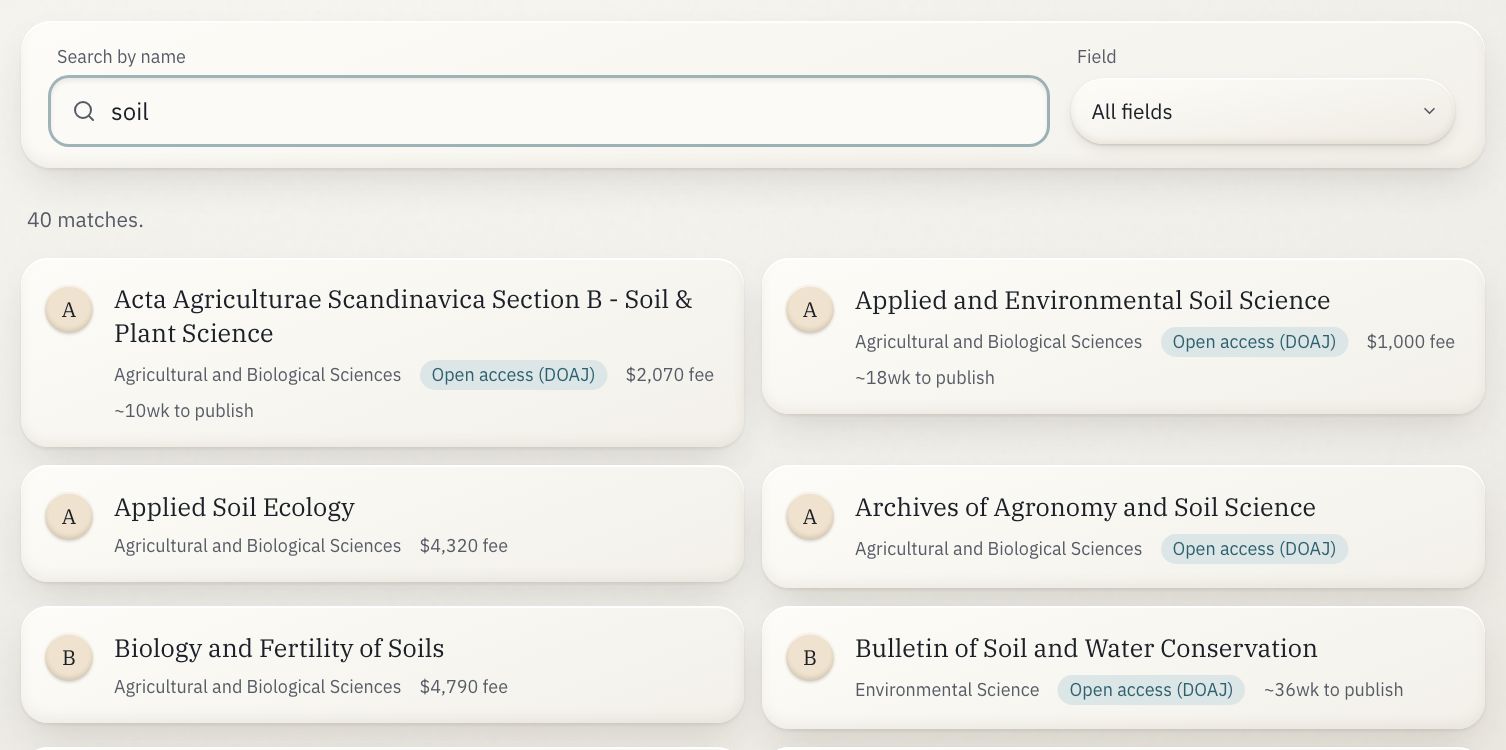
The first 100 matches are shown; narrow the search to see the rest.
- Search by name: the list narrows as you type.
- Field: keep one field (Medicine, Engineering…).
- A journal: opens its page; journals without a page of their own open their details right in the card.
- Chips: open access (listed in DOAJ), MEDLINE-indexed, the article processing fee, the typical weeks to publish.
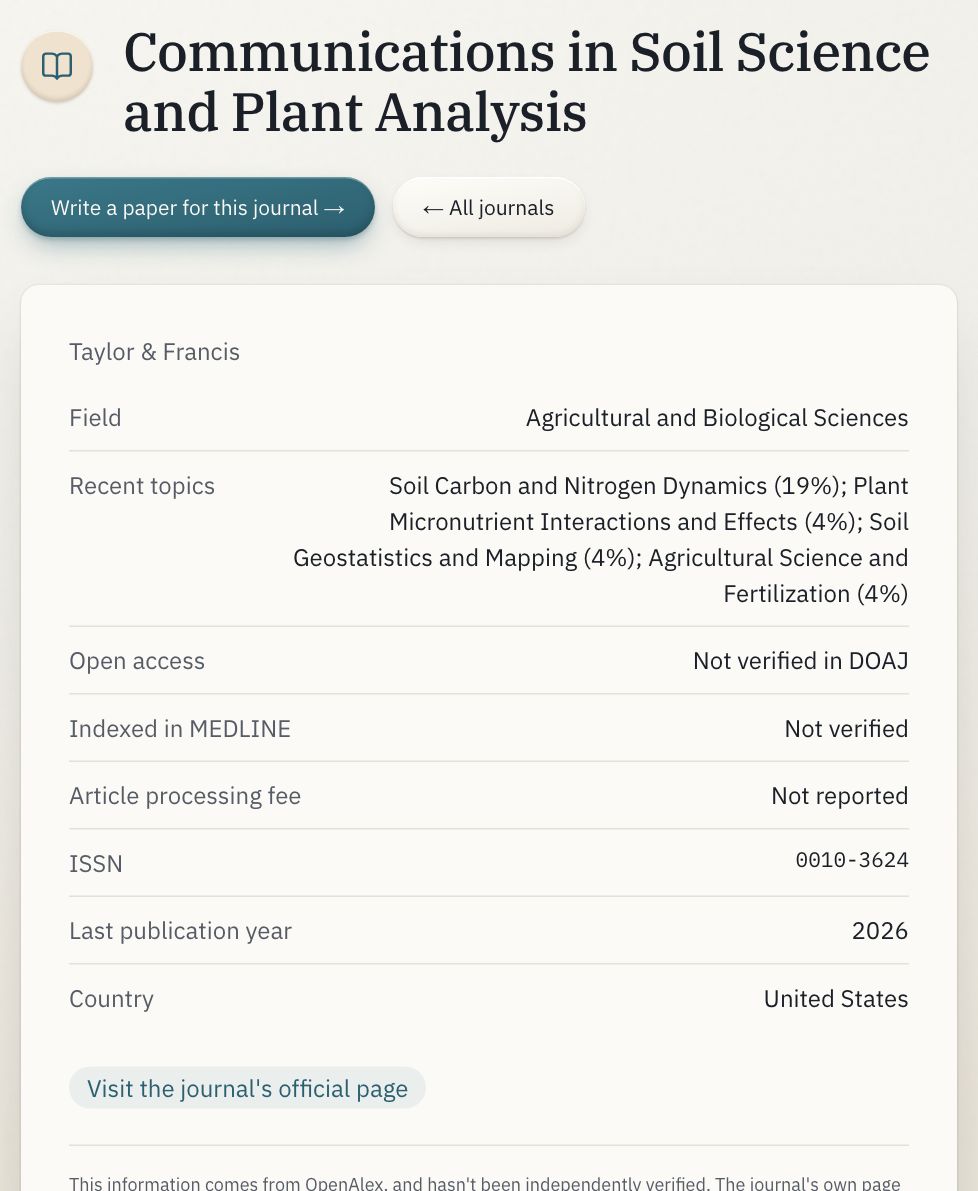
- Write a paper for this journal: starts a project in the workspace from the template its publisher uses.
- All journals: back to the browser.
- Its details: field, the topics of its recent papers, open access, MEDLINE, fees (with DOAJ's own figure when it differs), time to publish, licence, ISSN, last year it published, country.
- Official links: the journal's own page and its peer-review policy. They are the final authority; the details here come from OpenAlex and DOAJ.
Match your paper
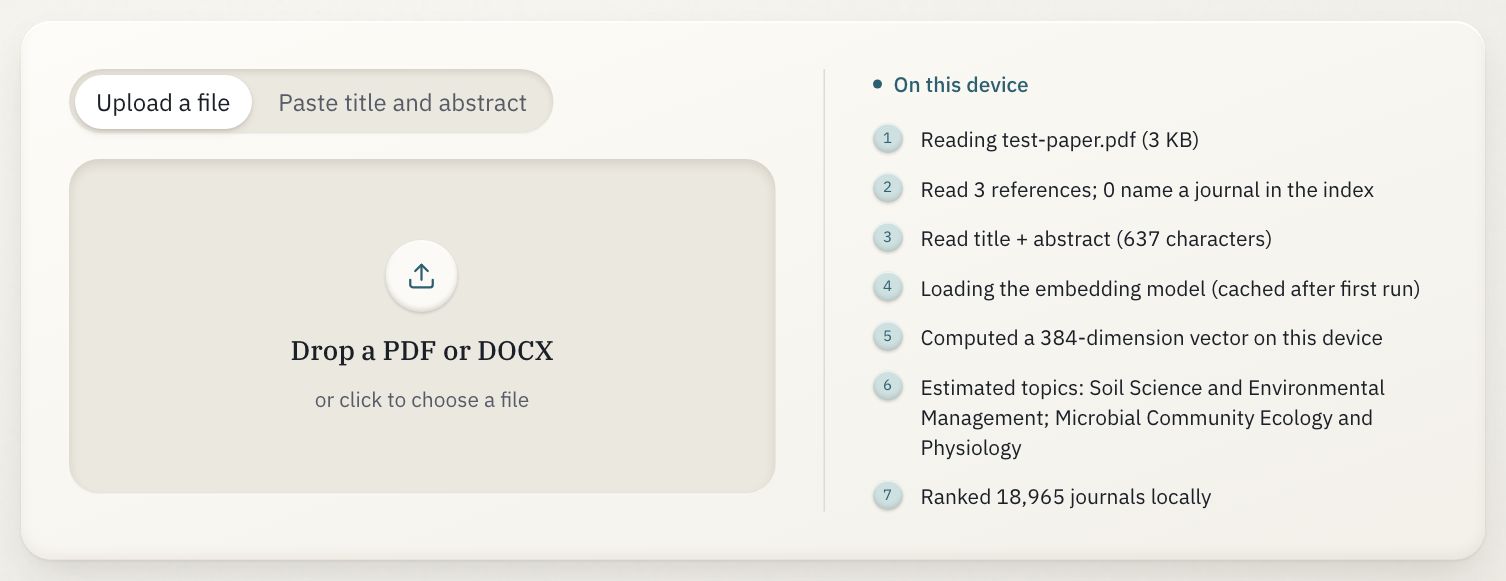
- Two ways in: upload a file, or paste the title (first line) and abstract; pasting is the light path for a phone or a draft that isn't a file yet.
- Drop a PDF or DOCX, or click to choose one.
- On this device: every step as it runs: reading the file, finding references, reading the title and abstract, loading the matching model (once, then cached), making the paper's vector, estimating its topics, ranking the journals.
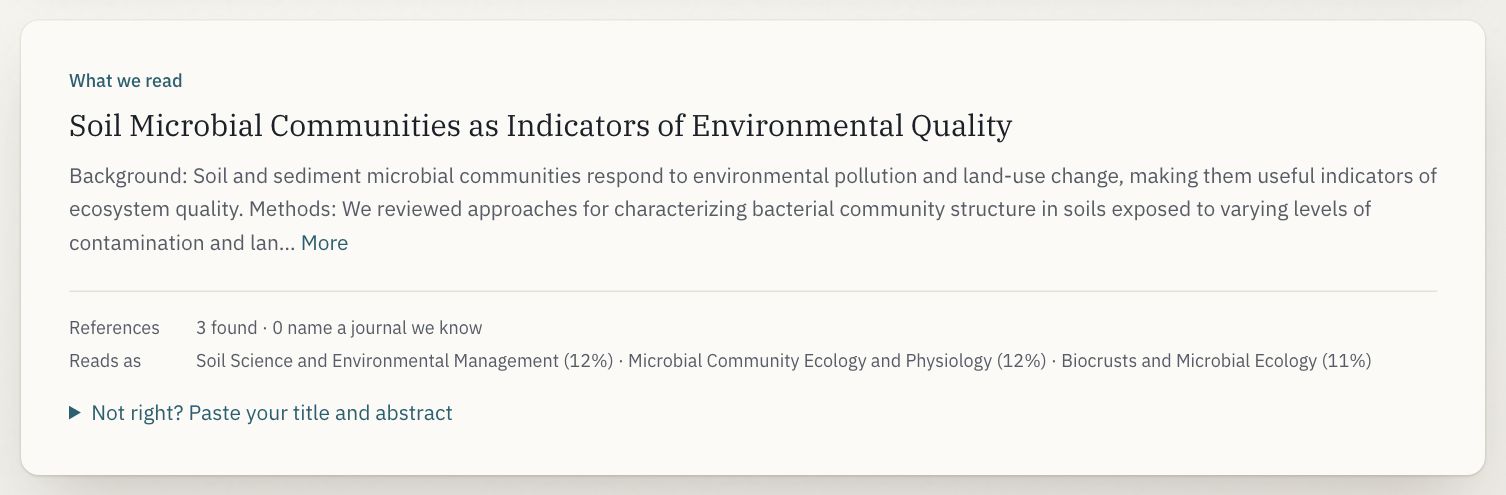
- Title and abstract as they were read. More shows the rest.
- References: how many were found and how many name a journal in the index. Journals you cite count toward the ranking.
- Reads as: the research topics your paper most resembles, with their share.
- Not right? Paste your title and abstract to match on those instead; your file's reference list still counts.

Filters: they re-rank the list instantly, on the device
- Field
- Only journals in one field.
- All fields
- Fee
- Any fee · Free only · Under $1,500 · Under $3,000 · Under $5,000 (the article processing charge).
- Any fee
- Speed
- Any speed · Under 8 · 16 · 26 weeks: the journal's typical time from submission to publication.
- Any speed
- Open access (DOAJ) only
- Only journals listed in the Directory of Open Access Journals.
- Off
- MEDLINE-indexed only
- Only journals indexed in MEDLINE.
- Off
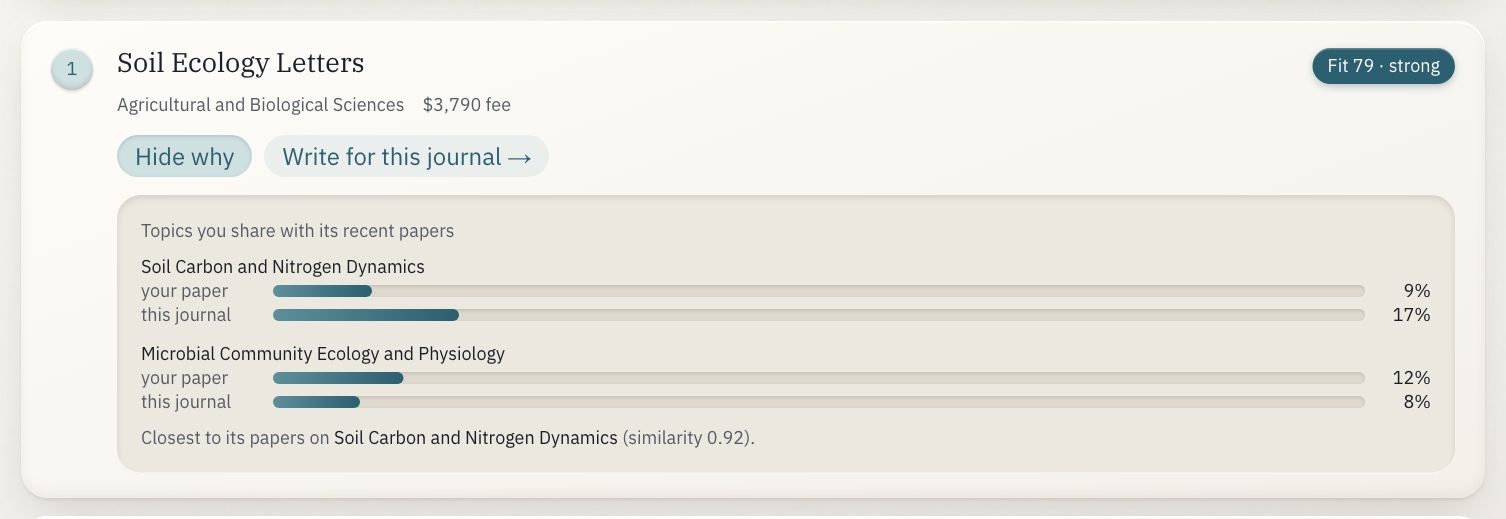
For the journals with hand-verified guidelines, a result also offers Check against its rules (the structural check, inline) and AI review available (the Review page).
- Rank: best first; the top three are tinted.
- The journal: opens its page, or its details in place.
- Fit: how close the match is next to real published pairings: “Fit 78” is as close as 78% of real papers are to the journal they appeared in. Strong, possible or weak.
- Chips: field, open access, MEDLINE, fee, speed.
- Why this journal: shows or hides the reasons.
- Write for this journal: a new workspace project in its publisher's template.
- The reasons: the topics you share with its recent papers (yours against its), how often your references cite it, and the cluster of its papers yours sits closest to.
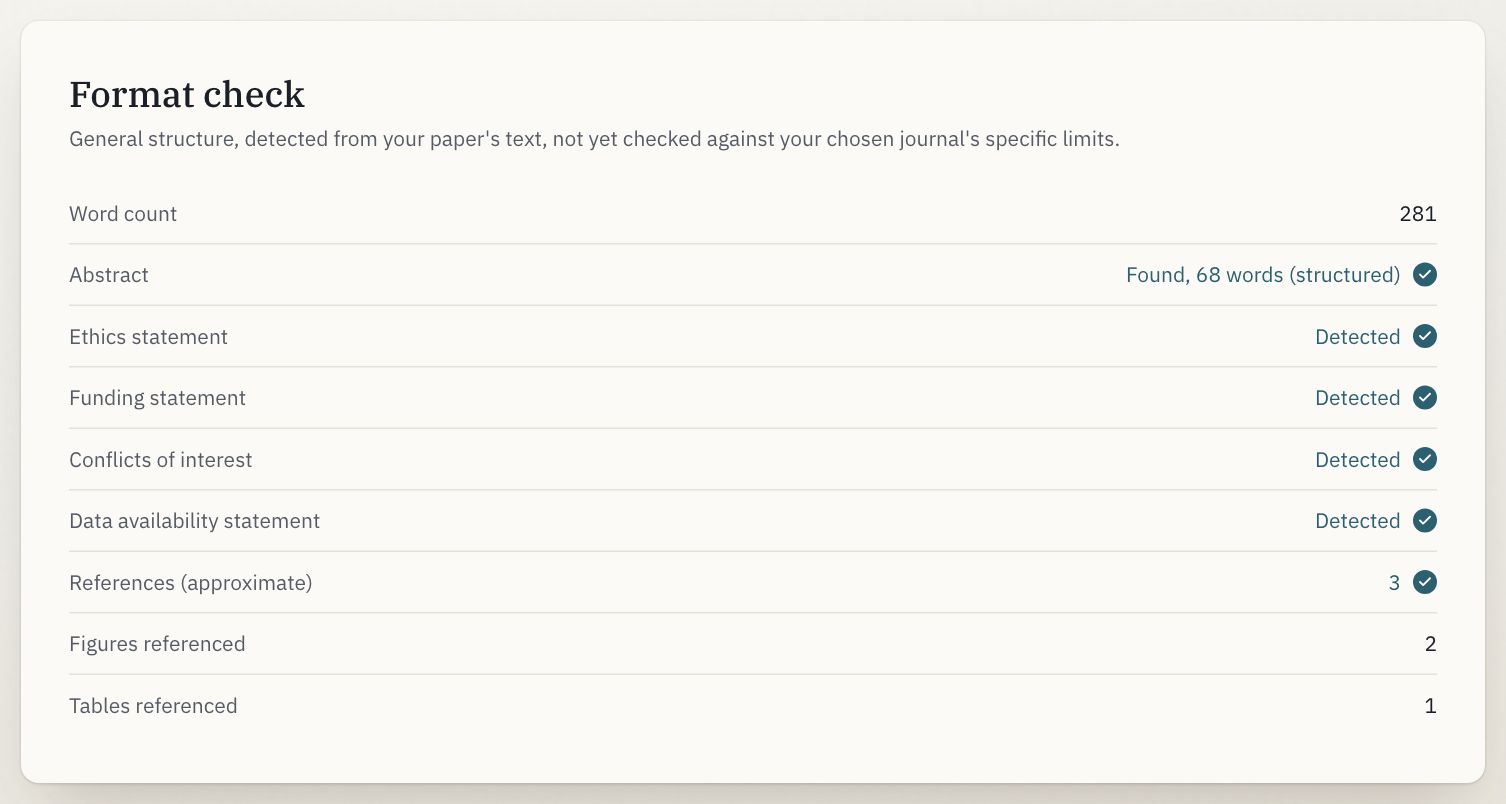
Also: an approximate reference count and how many figures and tables are referenced. It's a rule-based read of your text; confirm against the journal you choose.
- Word count of the whole text.
- Abstract: found or not, its length, and whether it's structured.
- Statements: ethics, funding, conflicts of interest, data availability: a tick if a statement was found.
Get it reviewed
1 · Attach your paper
A PDF or DOCX. It's read in this tab; nothing is sent until you confirm the notice in step 3.
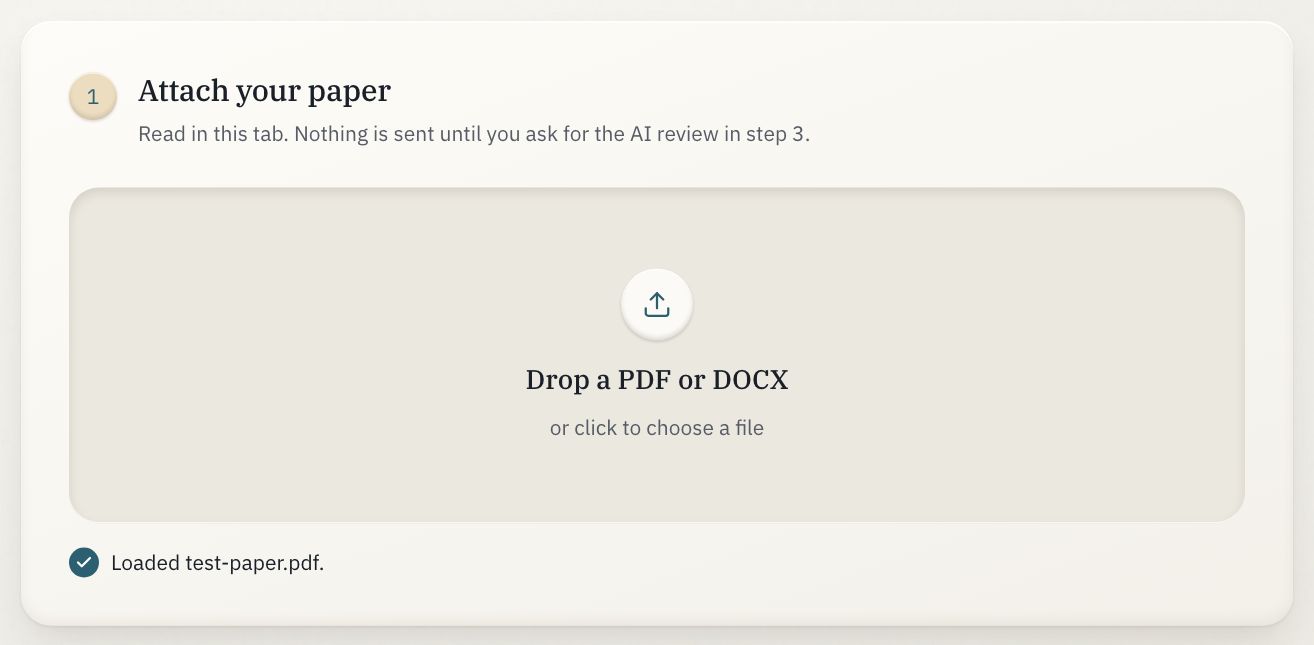
- Drop the file here, or click to choose it.
- A tick and the file's name once it's read.
2 · Choose a journal
The journals whose guidelines have been verified by hand: JAMA, PLoS ONE, Cureus, BMC Public Health, IEEE Access, Frontiers in Psychology, Nature Communications and Scientific Reports. For suggestions across the whole index, use Match.
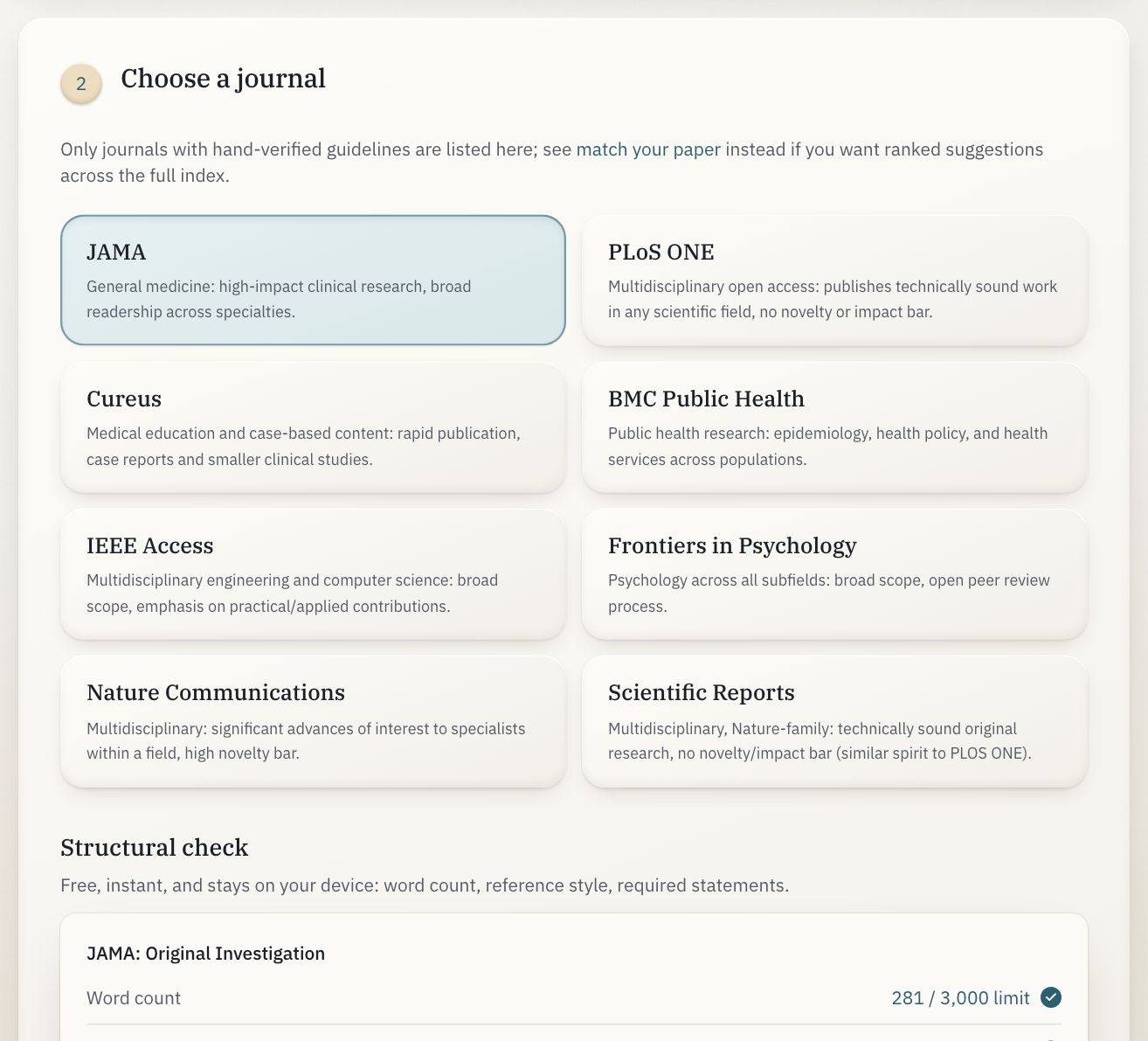
- The chosen journal: pressed in.
- Any other card switches to it.
- Structural check: your word count against the limit for its main article type, the reference style it asks for (numbered or author–year) where it sets one, and its required statements. Dated, and linked to the journal's own guidelines.
3 · Get it reviewed
Choose how deep, check the outline, then ask. The notice tells you exactly what would be sent before anything is.
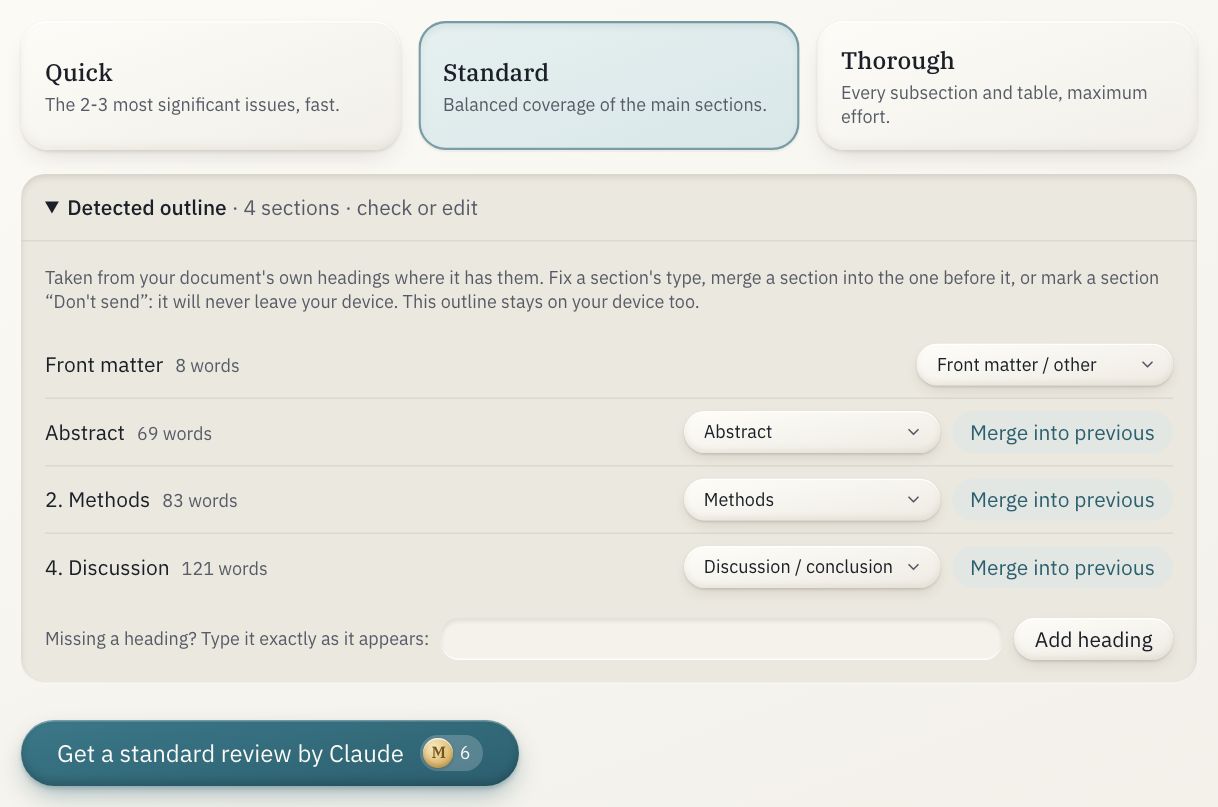
- Quick
- Standard (the default)
- Thorough
- A section's type: fix what was detected, or choose Don't send.
- Missing a heading? Type it exactly as it appears in the paper and add it.
- Get a … review by Claude: opens the notice; nothing is sent yet.
Depth
- Quick
- The abstract, results and discussion; the 2–3 most significant issues, fast.
- Standard
- Every section except the references and supplementary material; balanced coverage.
- Default
- Thorough
- Every section except the references, every subsection and table, with the most effort.
The detected outline: it decides what is sent, and stays on your device
- Section types
- Abstract, Introduction, Methods, Results, Discussion / conclusion, Main text, Supplementary, References, Front matter / other.
- Don't send
- The section is left out of every request; it never leaves your device.
- Merge into previous
- Joins a section to the one before it (a heading that was really a sub-heading).
- Add heading
- Splits the text at a heading the reader missed; type it exactly as it appears.
- Undo all edits
- Back to the outline as detected.
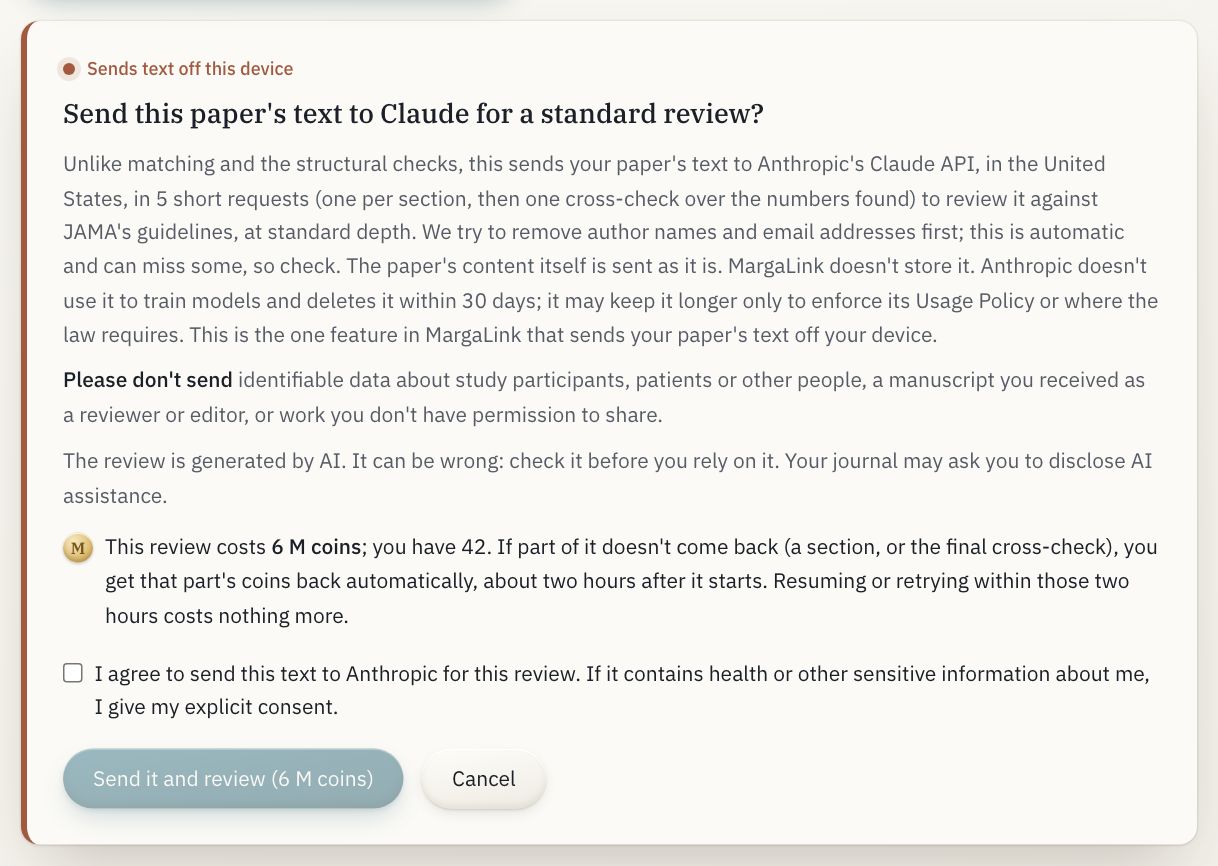
- Marked in the colour for something that leaves your device.
- What happens: your text goes to Claude in a stated number of short requests: one per section, then one cross-check of the numbers found. Author names and email addresses are stripped first (best effort).
- The price: what this review costs in M coins, and your balance. Any part that doesn't come back (a section, or the final cross-check) is refunded about two hours after it starts; resuming or retrying costs nothing more.
- Send it and review: the only way a review starts, and only once you tick the box agreeing to send the text. Cancel sends nothing.
What a review sends, and what happens to it
The text of the sections you didn't mark Don't send, to Anthropic's Claude API. Anthropic doesn't train on API data and deletes it within 30 days, keeping it longer only to enforce its Usage Policy or where the law requires; MargaLink stores none of it. Papers over 400,000 characters are refused before the notice, never cut short.
Using AI review responsibly
- Use it only for your own manuscripts, or with your co-authors' agreement.
- Never use it for a manuscript or grant you received as a peer reviewer or editor: funders and journals forbid sending those to AI tools.
- Leave out identifiable data about study participants or patients.
- Check your target journal's AI policy, and disclose AI assistance where it asks.
If your journal wants a disclosure, you can adapt this:
The authors used MargaLink's AI review, which uses Claude by Anthropic, to check the manuscript against the journal's guidelines before submission. The authors reviewed all suggestions and take full responsibility for the content.
While it runs
A bar shows each section as it's read. Cancel stops it without using a review; Resume review picks up where it stopped. If a section couldn't be checked, the rest still finishes and Retry failed sections re-runs just those.
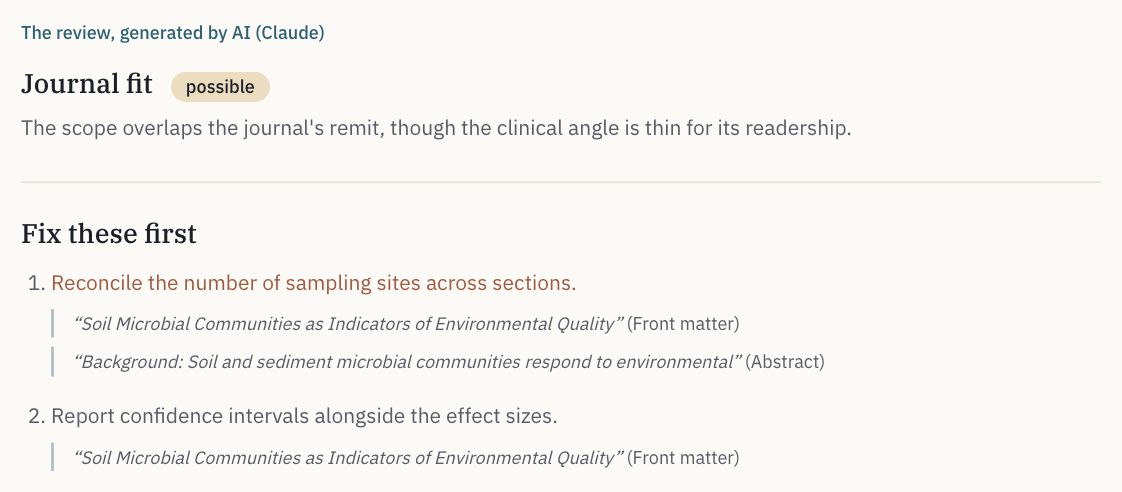
- Journal fit: good, possible or poor, with the reasoning.
- Fix these first: the findings that matter most, in order; major ones are marked.
- The passages each finding rests on. Every quote was checked against your paper before you see it.
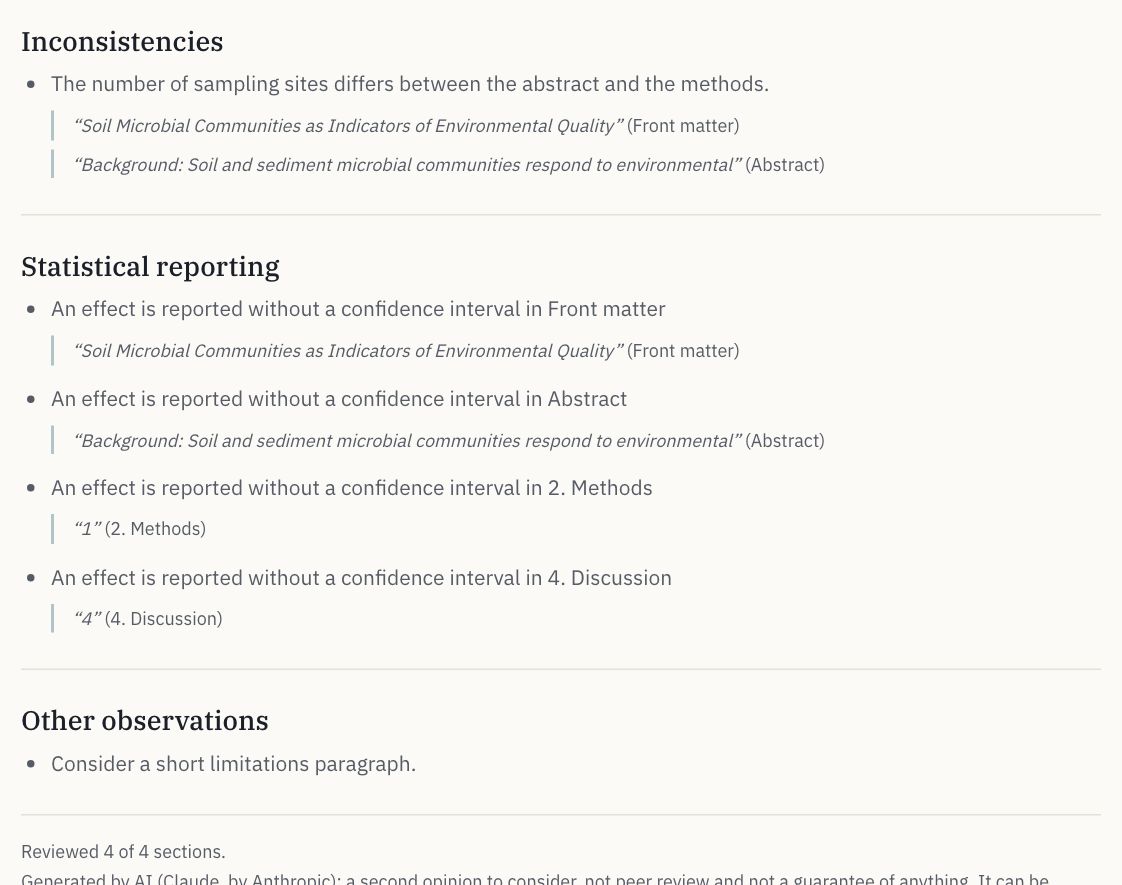
It's a second opinion from a language model: consider it, but don't treat it as a guarantee.
- Inconsistencies: numbers that disagree between sections.
- Statistical reporting: for example an effect without a confidence interval.
- Coverage: which sections were reviewed, any that couldn't be, and what this depth skipped.
Make figures
1 · Attach your data
A CSV, TSV, TXT or XLSX file. It's read in this tab and its values never leave it. A workbook with several sheets asks which one.
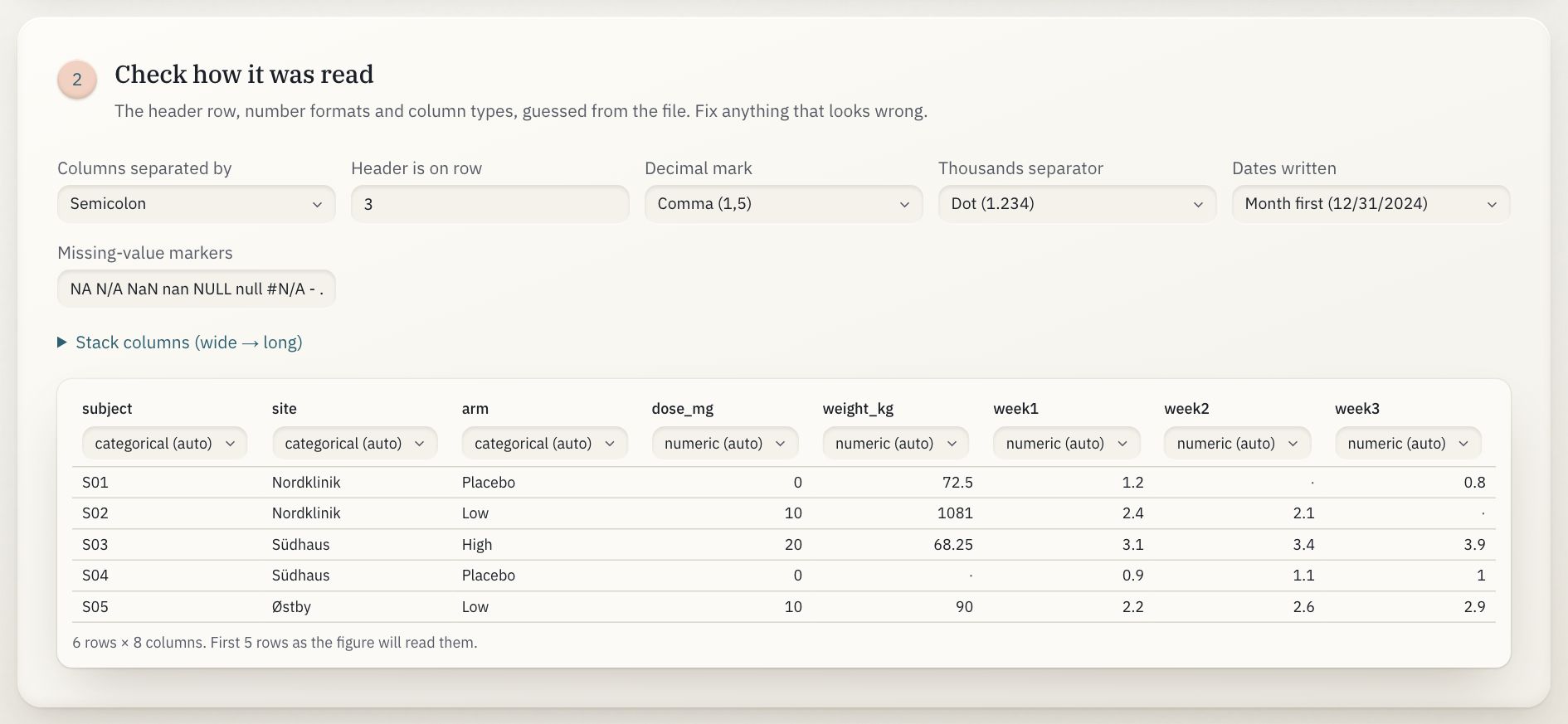
- Columns separated by (CSV files): comma, semicolon or tab, guessed from how the rows split.
- Header is on row: guessed past any title or note lines above the table.
- Decimal mark: dot (1.5) or comma (1,5).
- Thousands separator: none, comma, dot, space or apostrophe (never the same as the decimal mark).
- Dates written: day first (31/12/2024) or month first (12/31/2024); guessed when a date gives it away.
- Missing-value markers: what counts as an empty cell (NA, N/A, NULL, #N/A, -…).
- Stack columns (wide → long): turn week1, week2, week3 into one measure plus a column saying which, with names you choose.
- A column's type: categorical, numeric or date; “(auto)” is the guess. Cells that aren't numbers in a numeric column are left empty, and counted.
- Preview: the first rows, exactly as the figure will read them.
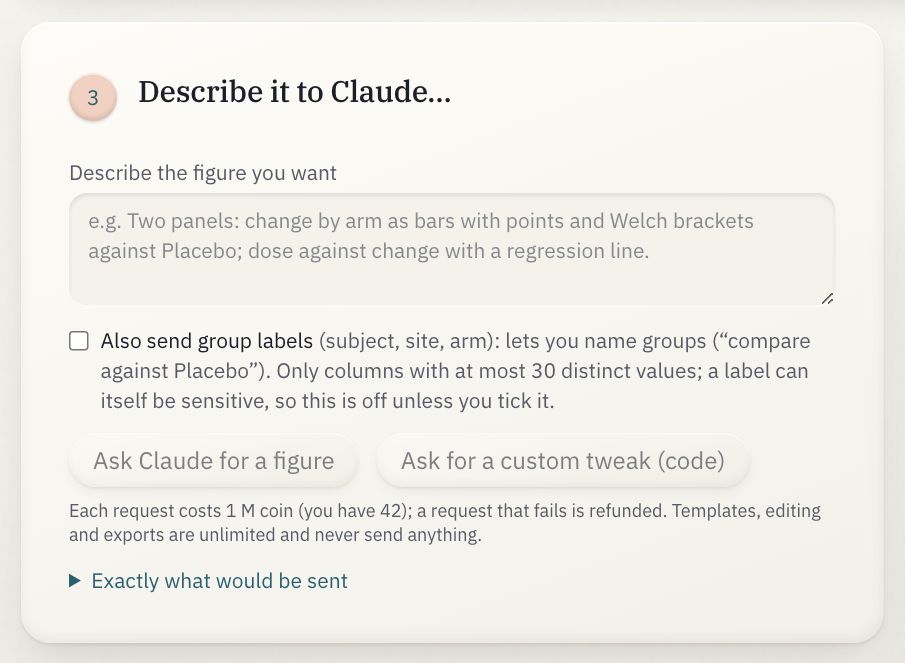
- Describe the figure you want, in your own words.
- Also send group labels: lets you name groups (“compare against Placebo”); only columns with at most 30 distinct values. Off unless you tick it.
- Ask Claude for a figure: Claude returns a figure description, applied to your data here.
- Ask for a custom tweak (code): for what the settings can't do: a small Python function you read first, run only when you click Run this tweak, with network access switched off.
- Exactly what would be sent: the request itself, before you send it.
What Ask Claude sends
Column names and their types, the row count, your request, and the current figure with every text you typed blanked. Group labels only when ticked, and listed in the notice each time. Never a cell value, never a sample row, never an error message from your data. Each request costs 1 M coin and is refunded if it fails; templates, editing and exports are free, unlimited and send nothing.
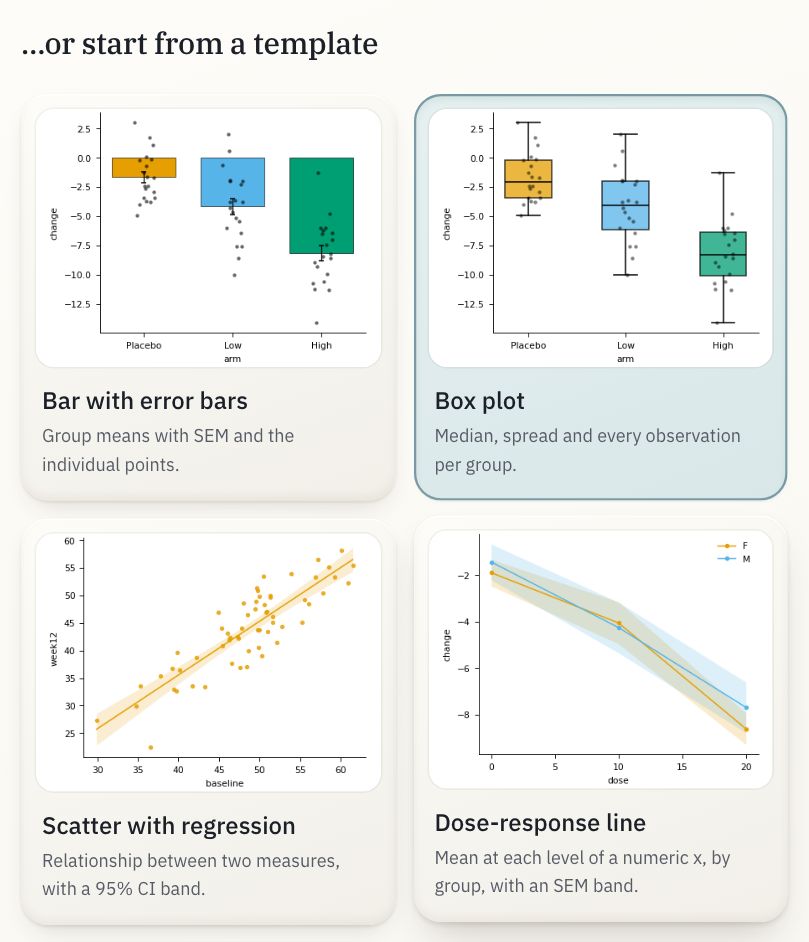
Bar with error bars · Box plot · Scatter with regression · Dose-response line · Histogram · Grouped bar · Stacked bar · Violin with brackets · Strip plot · Correlation matrix · Forest plot · Kaplan-Meier survival · Two-panel figure · Four-panel grid.
- The template in use.
- Any other starts over from it, bound to your columns by type. No request is made.
4 · Adjust the whole figure
These apply to every panel.
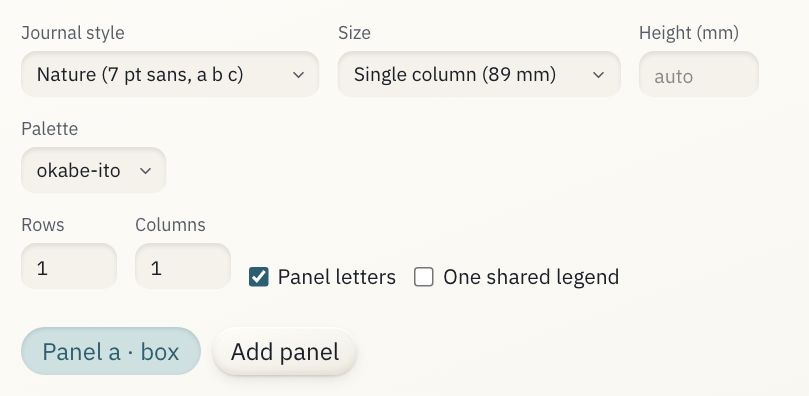
- Journal style
- Size
- Rows and columns of panels
- Panel letters and a shared legend
- A panel: choose which one you're editing
- Add panel (Remove panel appears once there are two)
- Journal style
- Nature (7 pt sans, a b c) · Science (7 pt sans, A B C) · Medical journals (8 pt sans) · IEEE (8 pt serif) · Minimal (9 pt, slides).
- Nature
- Size
- Single column (89 mm) · Double column (183 mm) · Custom (a width in mm).
- Single column
- Height (mm)
- Auto, or a fixed height.
- Auto
- Palette
- okabe-ito (colour-blind safe) · tol-bright · tol-muted · viridis · grey · custom (pick each colour).
- okabe-ito
- Rows · Columns
- The grid the panels sit in.
- Panel letters
- Label panels a, b, c (or A, B, C, by style).
- One shared legend
- A single legend for all panels instead of one each.
4 · Adjust one panel
Choose the chart type and which column plays which part; the sections under it open for the finer controls.
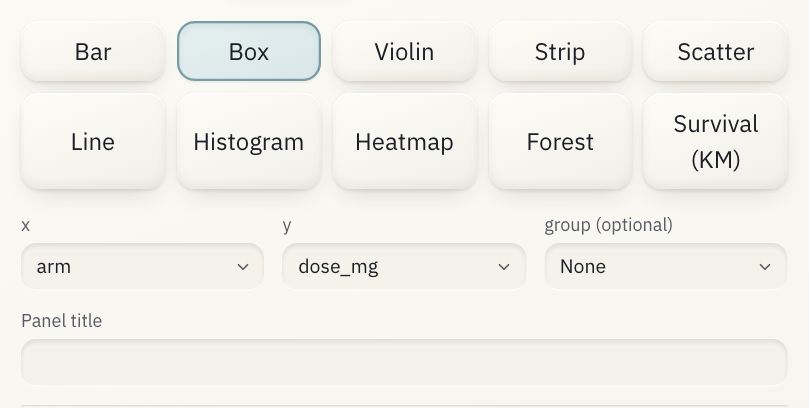
- Chart type: Bar, Box, Violin, Strip, Scatter, Line, Histogram, Heatmap, Forest, Survival (KM).
- x
- y (and an optional group; forest and survival plots ask for their own columns: estimate and interval, time and event)
- Panel title
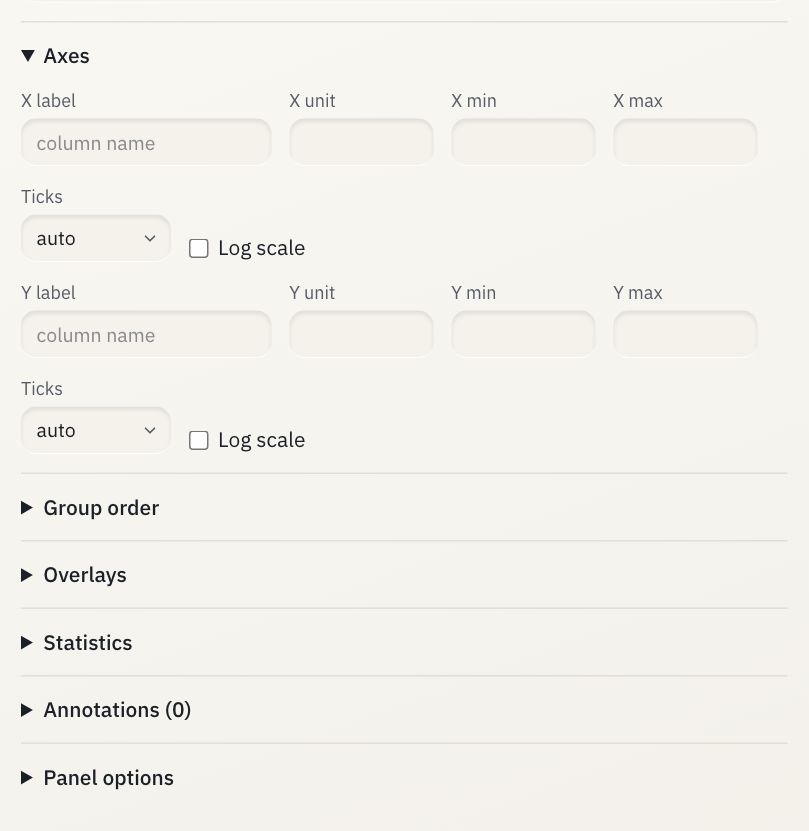
- Axes
- Statistics
- Annotations
A panel's sections
- Axes
- For x and y: label, unit, minimum and maximum, tick format (auto · plain · percent · scientific · thousands) and log scale.
- Summary
- For bars and lines: the statistic (mean · median · sum · count) and the error bars (none · SD · SEM · 95% CI · from a column).
- Group order
- As in the data · alphabetical · by value, rising or falling · your own order (move groups up and down).
- Overlays
- Individual points · mean marker · median marker · regression line · n under each group, with their opacity.
- Statistics
- The test: automatic (Welch) · Student's t · Welch's t · Mann–Whitney U · Wilcoxon (paired) · one-way ANOVA · Kruskal–Wallis · Pearson r · Spearman ρ · log-rank. Which comparisons: all pairs · each against the first · against a reference group · pairs you choose. How p shows: stars · p · both. Computed on your device; the first test loads a 14 MB statistics library, once.
- Annotations
- Text, an arrow, a horizontal or vertical line, a horizontal or vertical band, placed by value.
- Panel options
- Legend on or off; for survival plots a numbers-at-risk table and censoring ticks; how many grid columns the panel spans.
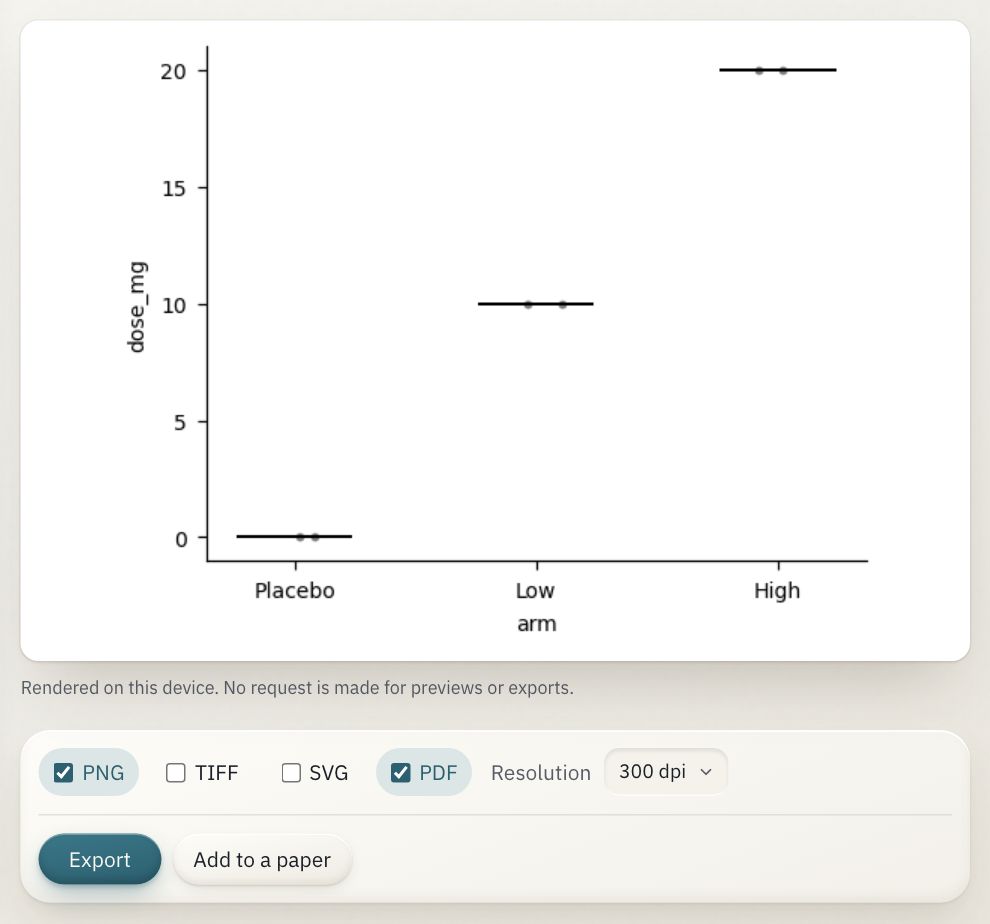
- Your figure: redrawn on every change. If a change can't be drawn, the last good one stays with the reason under it.
- Drawn on this device; previews and exports make no request.
- Formats: PNG, TIFF, SVG, PDF; tick any.
- Resolution: 300 or 600 dpi for PNG and TIFF.
- Export: download links for each format, at the journal width.
- Add to a paper: puts the figure into a workspace project's figures folder and gives you the LaTeX to place it.
Recipes
Save recipe keeps the figure's settings (never its data) as a small file; Load recipe redraws it later, or on updated numbers. A recipe with a custom tweak shows you the code again before it runs.
Write your paper
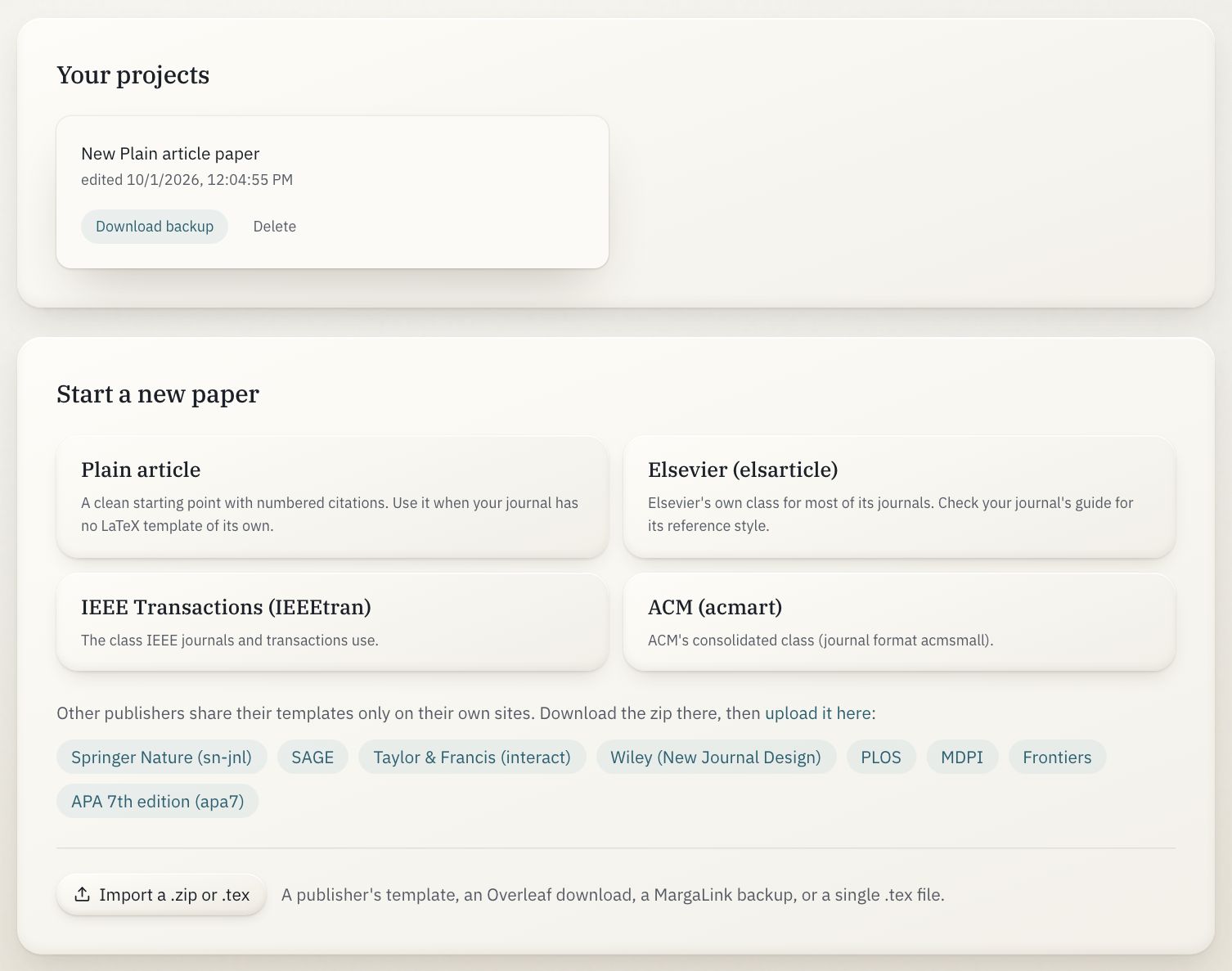
Coming from a journal's page or a match result, the matching template is suggested and pressed in.
- A project: opens it full screen.
- Download backup: the whole project as a zip.
- A template that compiles here: Plain article, Elsevier (elsarticle), IEEE Transactions (IEEEtran), ACM (acmart).
- Another one.
- Other publishers: they share templates only on their own sites: download the zip there, then import it.
- Import a .zip or .tex: a publisher's template, an Overleaf download, a MargaLink backup, or a single .tex file (it becomes main.tex; add its figures and .bib after).
Where your projects live
In this browser's own storage, on this device, never on a server. Clearing the browser's site data deletes them, so download a backup before you do, or to move to another computer (import the zip there).
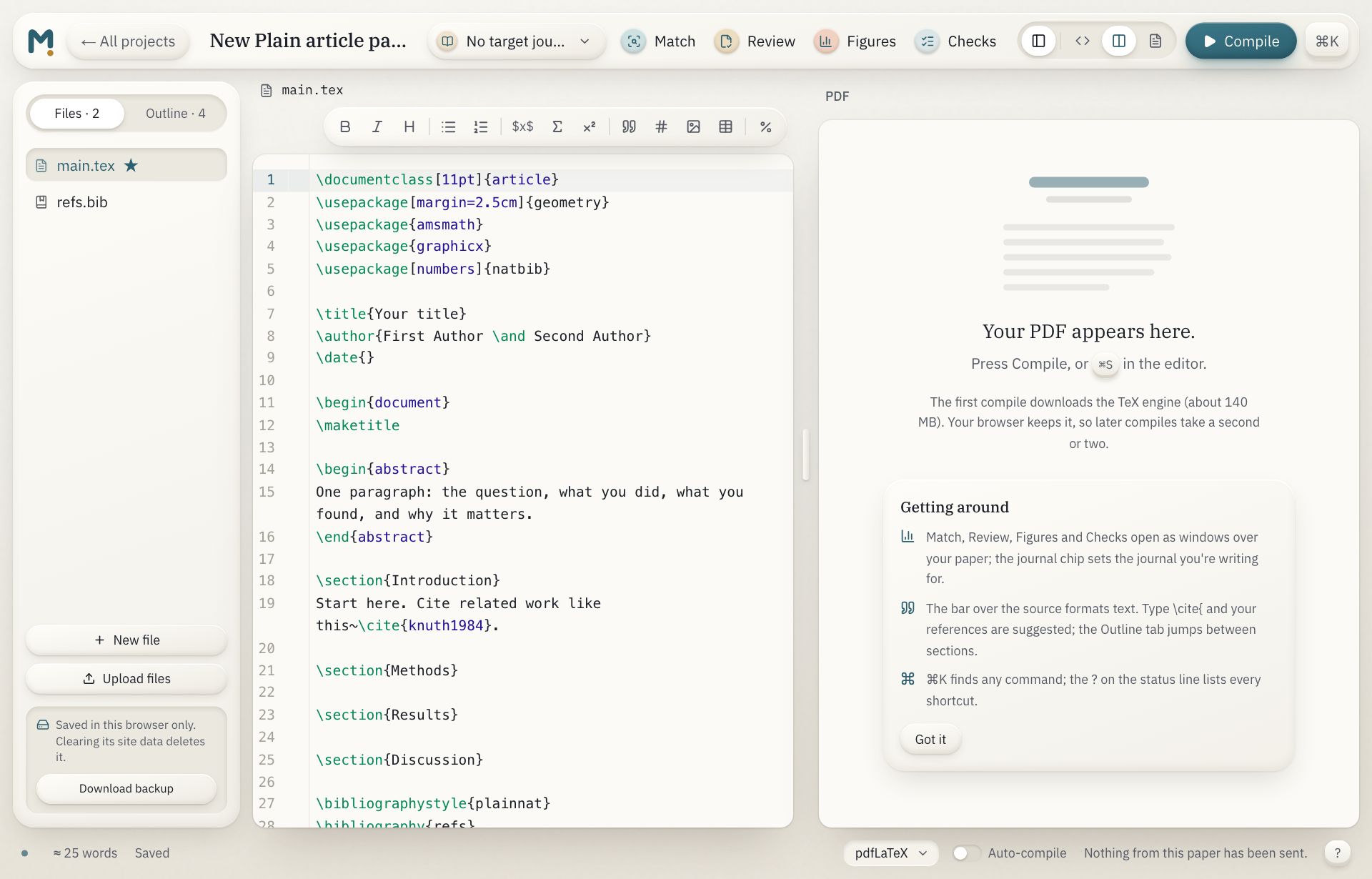
- All projects
- The project's name: click to rename.
- Target journal: the journal you're writing for; opens the Journal window.
- Tools: Match, Review, Figures, Checks, each in a window over your paper.
- View: the files panel on or off; the source only, both side by side, or the PDF only.
- Compile: ⌘S in the editor does the same.
- Commands: ⌘K: every action, searchable.
- Files and Outline
- The formatting bar
- The source: drag the handle between it and the PDF to resize.
- The PDF: here after the first compile; this card shows once, on a new project.
- The status line
The source
The bar over the source writes the LaTeX for you. Each button wraps what you've selected, or inserts a placeholder and selects it so you can type over it.
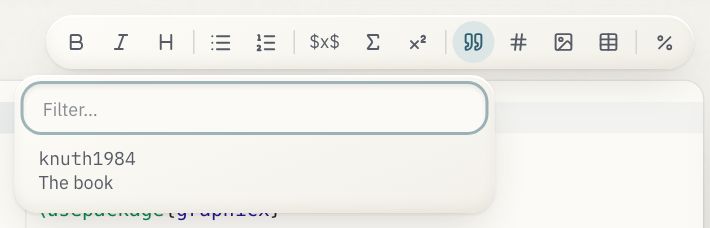
- Bold (⌘B), italic (⌘I)
- Section heading: section, subsection, subsubsection, paragraph
- Lists: bulleted, numbered
- Maths: inline, a numbered equation; and a footnote
- Cite: your .bib files' entries, with titles
- Filter them; Enter picks the first
- Ref: your \label{…}s
- Figure: the images in figures/, or open the Figures window
- Table: hover a grid to size it
- Comment the selected lines on or off (⌘/)

The same inside \ref{, \eqref{ and the like (your labels), after \begin{ (environments; the matching \end is written for you), and after a backslash (common commands; Tab moves through their fields). CtrlSpace shows suggestions any time.
- Typing \cite{…
- …suggests your references, with their titles.
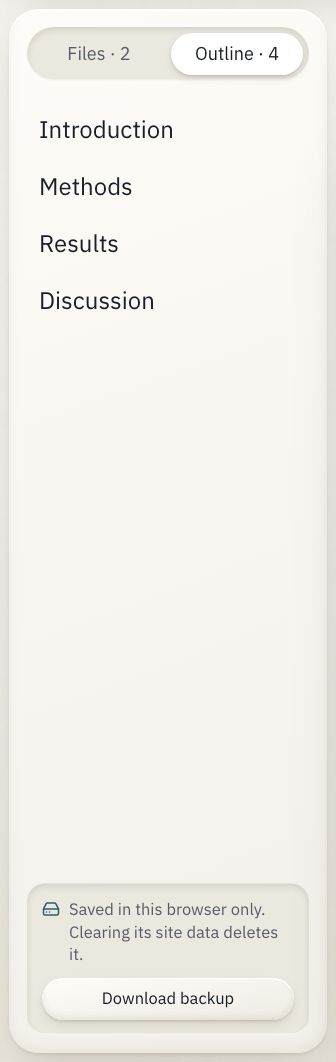
- Outline: your headings, following \input files.
- Click one to jump to it.
- Where the project is kept, and a backup.
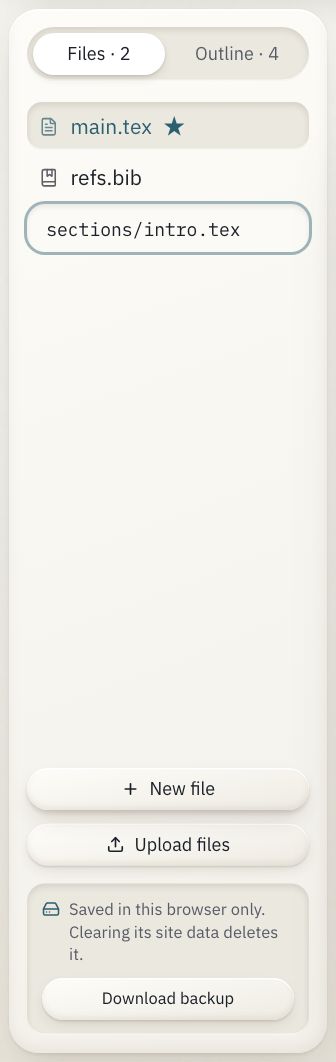
The pencil renames a file; the bin asks on the row before deleting. ★ marks the main file.
- New file: named in place; a path makes a folder.
- Upload files, or drop them on the list; images go to figures/.
- Download backup.
Compiling
Compile runs TeX Live in your browser. The first compile downloads the engine and its packages (about 140 MB, more for some templates) and your browser keeps them, so later compiles take a second or two. Errors are listed under the source with their file and line (click one to go there) and marked in the gutter. A missing package is retried once with everything available.

- Compile status, and the errors and warnings count
- Words: the whole paper (the main file and what it \inputs), against your target journal's limit when it has one
- Saved: every edit is saved in this browser within a second
- Engine: pdfLaTeX or XeLaTeX (for Unicode fonts)
- Auto-compile: compiles 2 seconds after you stop typing; off by default
- ?: every keyboard shortcut
The windows
The other tools open over your paper and keep their results when closed: close one, keep writing, reopen it where you left off.
- Match
- Ranks journals for the compiled PDF. Set as target journal makes one yours; AI review available opens Review for it.
- Review
- The review above, on the compiled PDF, against your target journal when it's one of the verified ones. Each quoted passage has Jump to source, which finds it in your LaTeX.
- Figures
- The whole figure studio. Insert into paper saves the figure (PDF) and its recipe in figures/ and places it at the cursor; opening the recipe later offers Edit in the figure studio.
- Checks
- The format check and your target journal's rules, on the compiled PDF, re-run whenever the draft changes.
- Journal
- Your target journal: its details, its rules, its template. Search to change it, or clear it.
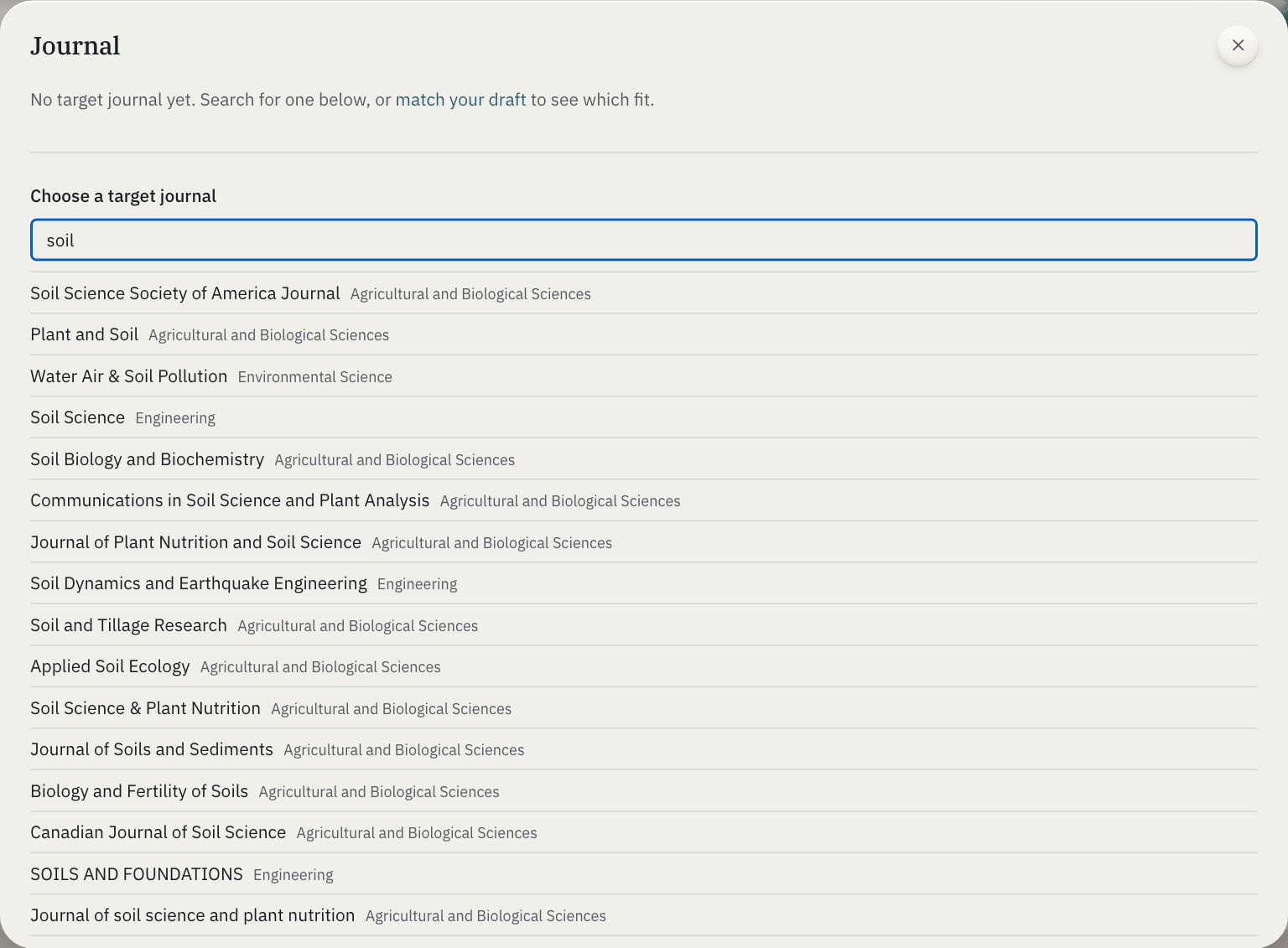
- Search journals
- Choose one as your target
- Close, or press Esc
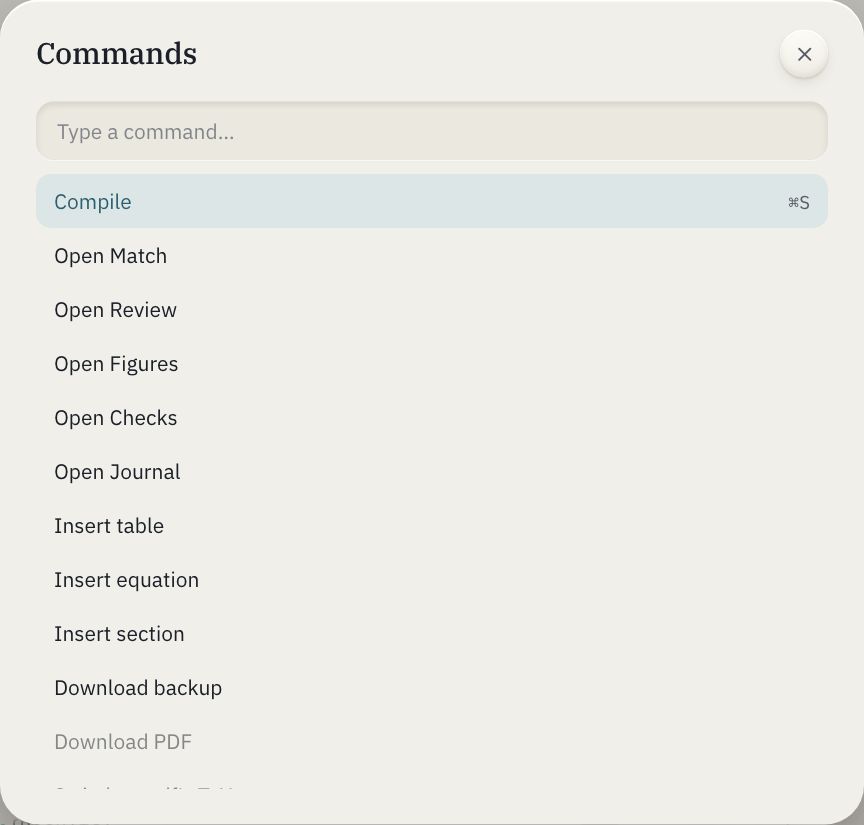
Views, auto-compile, backups, the engine, inserting: all of it is here.
- Type to find a command
- Arrow keys and Enter run it
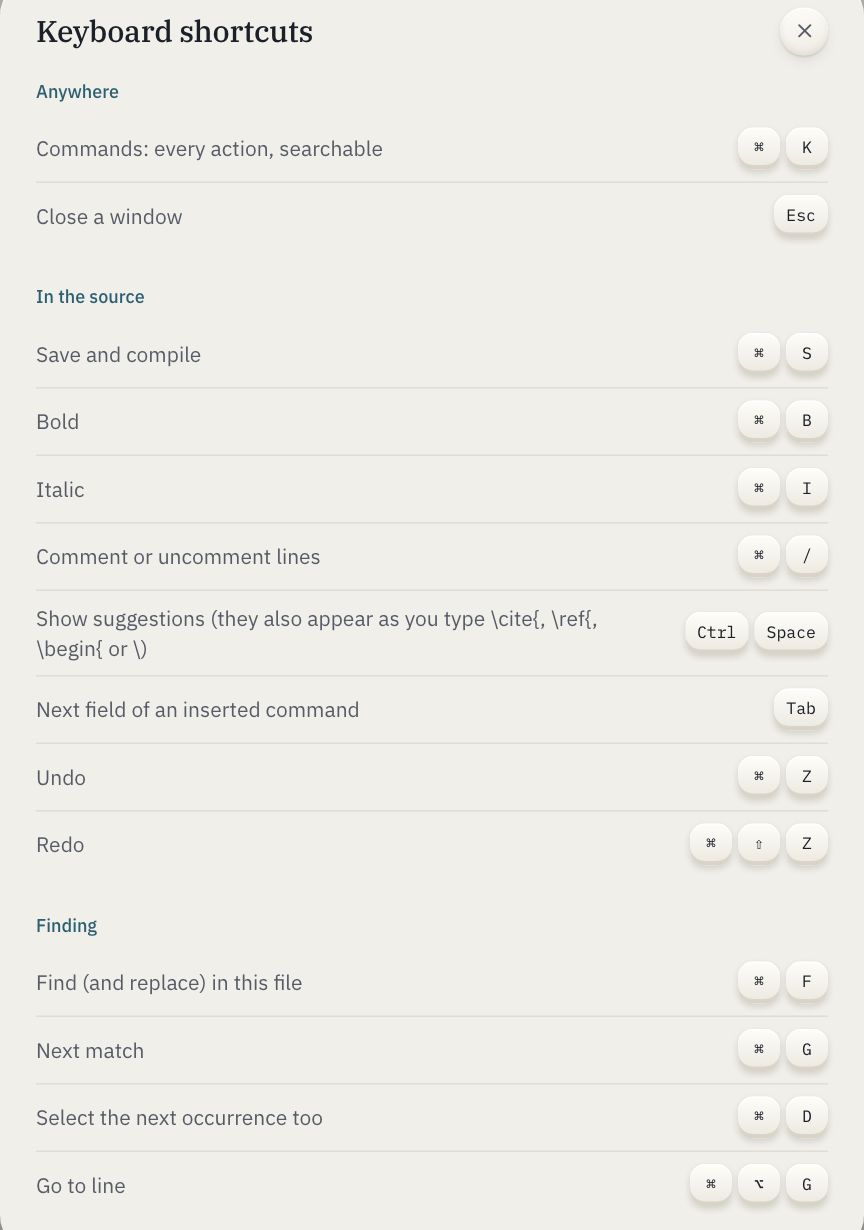
Everything on the keyboard, from the ? on the status line.
Accounts and M coins
Signing in
From the tray's Sign in, from a review or figure button, or from the sign-in page. Google opens in a small window and an email link opens in a new tab, so a paper you've loaded stays exactly where it is; the page notices you've signed in when you come back to it. A new account starts with 10 M coins.
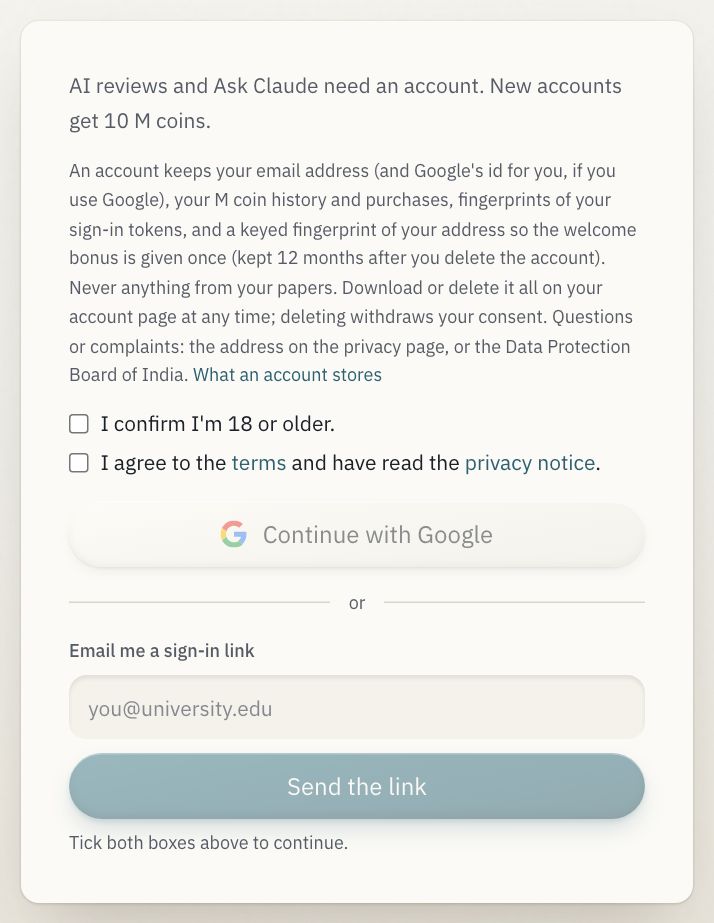
- Continue with Google, once you've ticked the two boxes above it (you're 18 or older; you agree to the terms and have read the privacy notice): shares your verified email address and Google's id for your account, nothing else.
- Your email address, for a one-time link instead. It works once, within 15 minutes.
- Send the link. Opening it asks you to confirm before signing in, so an email scanner can't use it up.
- What an account stores: the list, on the privacy page.
What things cost
A review's price depends on its depth and on how much text it sends, counting only the sections it actually reviews. You see it on the button and in the notice, before anything is sent.
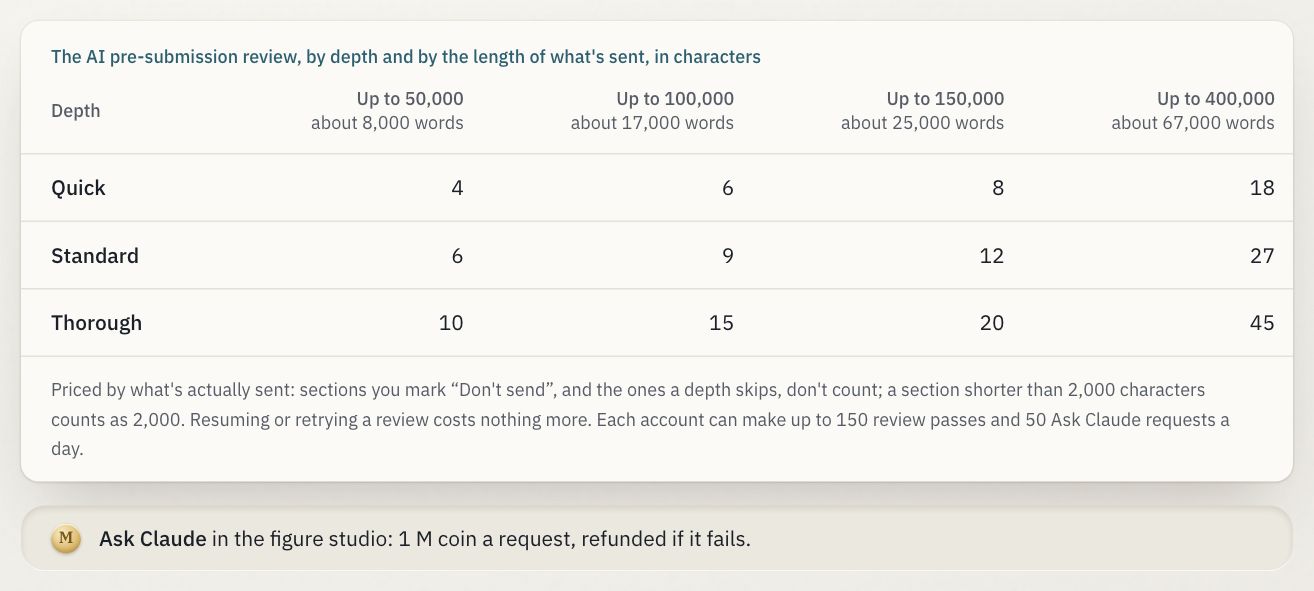
- Depth: quick, standard or thorough, as chosen on the review page.
- Length: the characters sent, in steps of 50,000.
- Sections you mark “Don't send”, and those a depth skips, don't count. Resuming or retrying is free.
- Ask Claude: 1 M coin a request.
Coins come back on their own
A review's price is shared among its sections, by length, and the final cross-check; any part that doesn't come back is refunded about two hours after the review started. An Ask Claude request that fails is refunded at once. Your history on the account page shows each refund.
Buying coins
Packs never expire. Paddle, our merchant of record, runs the checkout over the page, takes the payment and sends the receipt; we never see your card. The coins arrive a few seconds after you pay.
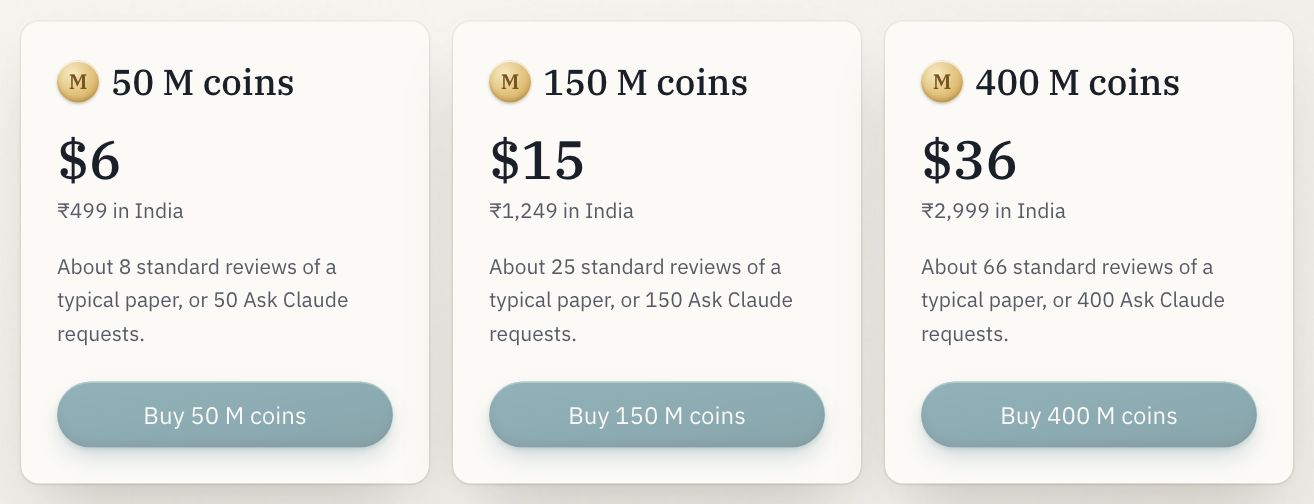
- How many M coins.
- The price, with the Indian price beneath; checkout shows the final amount in your currency.
- Opens the checkout.
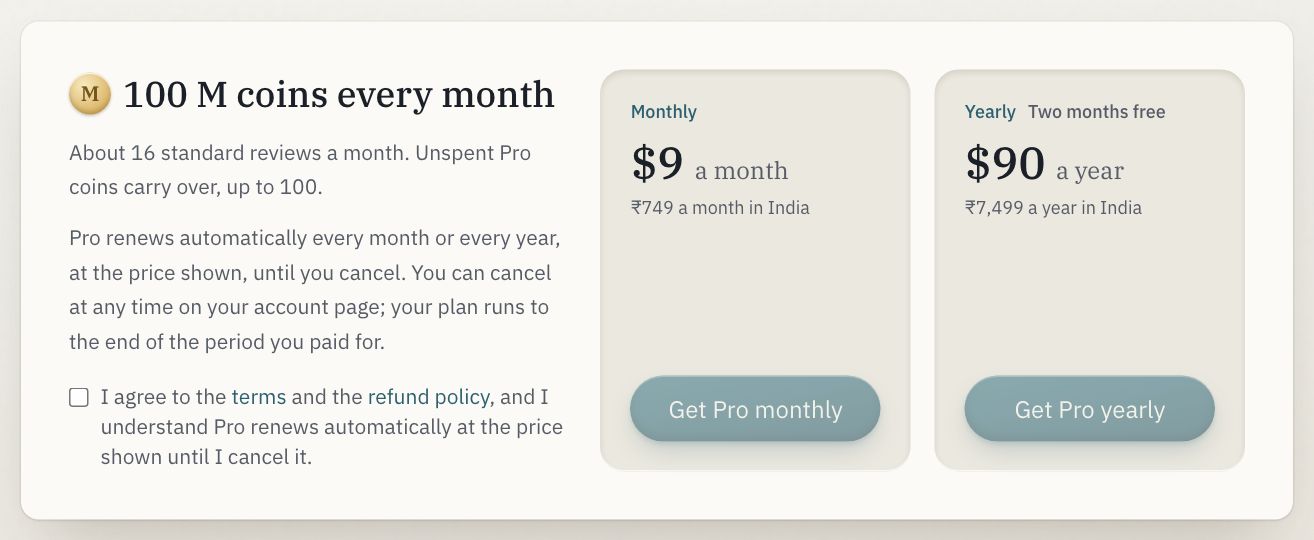
- Pro adds 100 M coins every month. Unspent Pro coins carry over, up to 100.
- Monthly.
- Yearly, two months free: the coins still arrive month by month.
Your account
Click your balance in the tray. You can see every coin in and out, sign out here or on every browser, manage Pro in Paddle's portal, download everything we hold about you, and delete your account, which also cancels Pro.
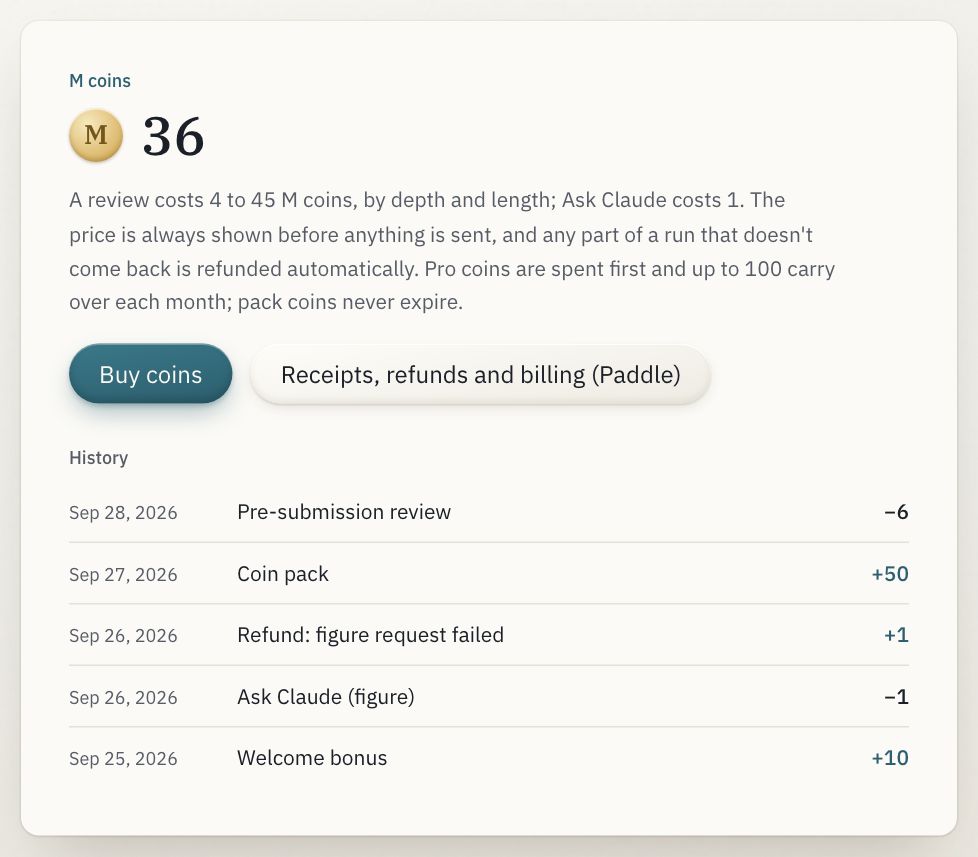
- Your balance.
- Each charge, with its date.
- A refund, made automatically.
- More coins.
When something's off
The first compile is slow
It downloads TeX once (about 140 MB). Later compiles reuse it and take a second or two.
"Missing package"
The compile is retried with every package available. If it still fails, the package isn't in this TeX Live; the error names it.
A tool window says "Compile first"
Match, Review and Checks read the PDF you compiled. Compile once, and they'll read the latest one.
"Couldn't find that passage in the source"
Jump to source searches your LaTeX for words the reviewer quoted from the PDF; heavy markup or maths can hide them. The quote is still right.
My review stopped
Resume review picks up where it stopped. A section that failed can be retried alone; it doesn't use another review.
A match looks wrong
Check What we read. If the title or abstract wasn't found, paste them and match again.
Moving to another computer
Download backup on the project, then Import a .zip or .tex on the other computer.
Where's my project?
In this browser, on this device. Another browser or a private window doesn't see it.
Clearing what this site keeps in your browser
Your projects, settings, cached downloads and whether you've seen the introduction live in this browser. This clears all of it; signing out is separate, on your account page.
Still stuck? The privacy page has the details of what runs where; the architecture tour explains how each tool works inside.